Free Drawing Software: Features Compared Side by Side
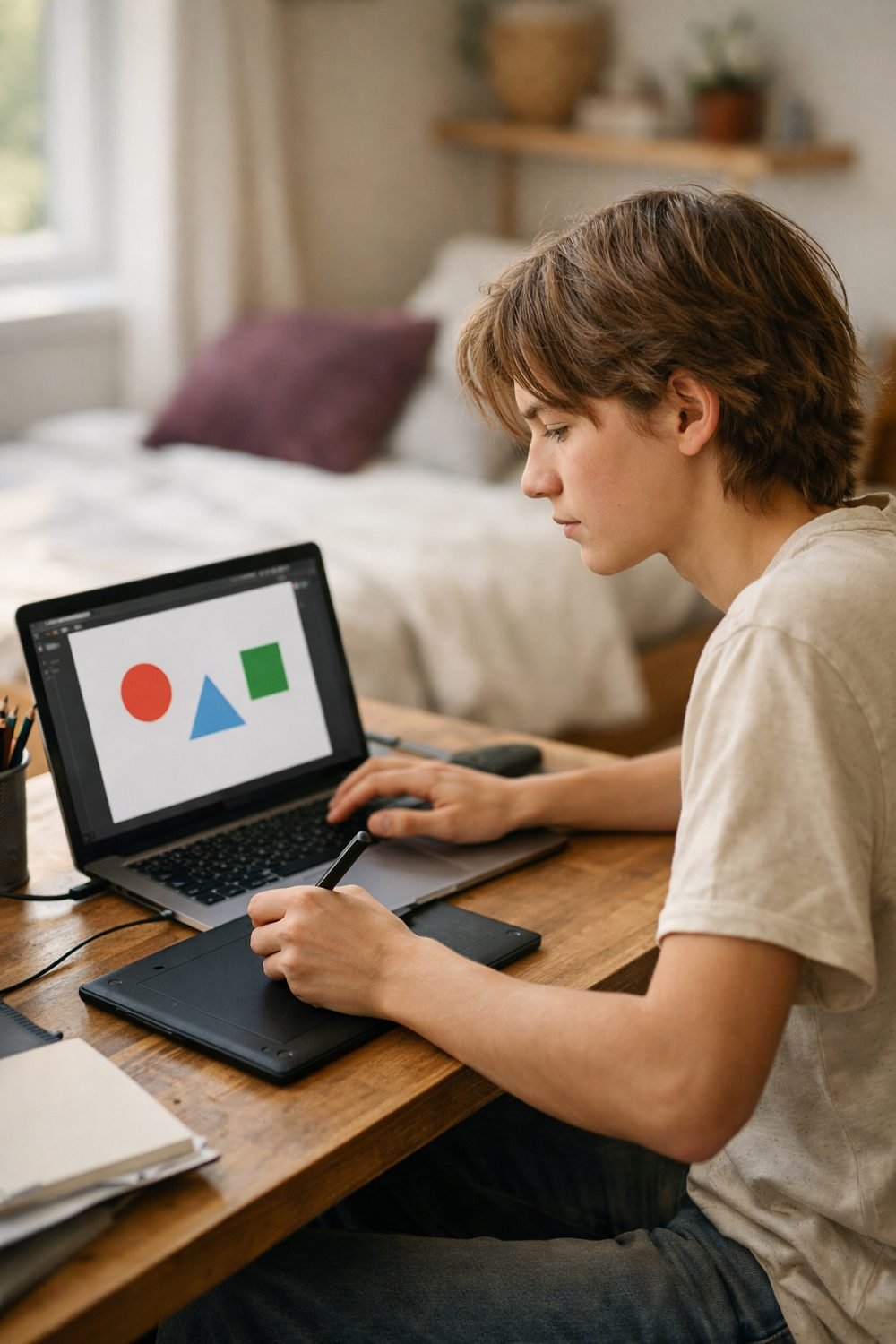
Free drawing software is a good place to start if you're curious about digital art. Free drawing programs vary a lot, and some suit quick sketches better while others hold up for real projects. They can do a lot. They also come with trade-offs, and those trade-offs aren't always clear until you're an hour into a drawing and can't find a feature you assumed would be there.
So instead of crowning the best drawing software, this post walks through the features worth comparing when you try a new free program. You can hold any app up against this list and decide for yourself. Features and terms change, so always check the developer's own page before you commit to anything.
Short on time? Our top picks: Krita, GIMP, MediBang Paint and Autodesk Sketchbook. See all picks
Platform: Where Will You Use Your Free Drawing Software?
This sounds boring, but it's the first thing that rules programs in or out. Some free digital art software only runs on Windows. Some are Mac only. Others run in a web browser, so you don't install anything at all.
Here's how I think about each type:
- Desktop apps (Windows, Mac, sometimes Linux): Usually more features and better performance on big files. You install them once and they work offline.
- Browser-based tools: Great for quick doodles or when you're on a borrowed laptop. They can feel slow with large canvases, and you usually need an internet connection.
- Tablet apps: Nice if you draw on an iPad or Android tablet with a pen, but the free versions often hold back features.
A well-known open-source program like Krita runs on Windows, Mac and Linux, which is one reason a lot of people try it first. GIMP is another free option that works across systems, though it leans more toward photo editing than drawing. Check the download page to confirm your system version is supported. It is easy to spend a long time downloading something before noticing it needs a newer operating system than an older laptop has.
Layers Make or Break It
If a drawing program doesn't have layers, I usually skip it. That's my honest opinion.
Layers let you keep your sketch, line art and colors separate. You can color under your lines without wrecking them. You can hide your rough sketch when you're done. You can try a background, hate it, and delete it without touching anything else.
Most serious free programs include layers now. The difference is in the details. When you compare, look for:
- How many layers you can have (some free versions put a cap on it)
- Blend modes like multiply, which makes shading much easier
- Layer groups or folders, which help on bigger pieces
- Opacity sliders for each layer
- Clipping masks, so color stays inside a shape
For simple sketching, basic layers are fine. If you plan to do full illustrations, blend modes and clipping masks will save you a lot of frustration. You might not think you need clipping masks until you try them once. Now I miss them in any program that doesn't have them.
Brushes: Range Versus Real Use
Brush libraries are where free programs love to show off. Some come with hundreds of brushes. That sounds great, but I'll be honest: a huge brush list is a bit overrated. Most people end up using four or five favorites.
What matters more is how the brushes feel. Do they respond to pen pressure from your digital drawing tablet? Is there lag between your stroke and the line showing up? Does the pencil brush actually look like pencil, or like a fuzzy blob?
The other thing to check is custom brushes. Can you tweak size, texture and spacing? Can you import brush packs that other artists share? Being able to adjust a brush until it's right for you matters more to me than getting 300 of them out of the box.
A quick test: open a new canvas, pick the default pencil and an inking pen, and draw a few circles and a messy hand. Five minutes tells me more than any feature list.
By the way, if you like mixing digital art with paper crafts, you can grab my free Junk Journal Starter Pages (tags, a pocket and a cover) by joining the email list on this page.
A note on pen pressure
If you have a drawing pad for PC, make sure the program supports it on your system. Sometimes pressure works in one app and not another, and the fix is a driver setting rather than the app itself. The tablet maker's support page is the place to look if lines come out all the same thickness.
File Types and Export Options
This is the part people forget about until it bites them. You finish a piece, go to share it, and realize the program only saves in its own format, or exports at low quality.
Here's what I look for:
- A native file that keeps layers. This is your "working" file. Keep it so you can edit later.
- PNG export. Good for line art and anything with clean edges or transparent backgrounds.
- JPG export. Smaller files, fine for posting online.
- PSD support. Handy if you'll ever move a file into another program or send it to someone else. Not every free app opens PSD files perfectly, so test it with a simple file first.
Also check whether the free version limits export size. Some browser tools let you draw at any size but only export small images unless you pay. That's not a dealbreaker for sketching, but it matters if you want to print something.
One habit that's helped me: I keep a simple log of which project lives in which program and file format. If you like tracking your setup that way, the Shot Log and Gear Journal below this post was made for photographers, but it works fine for noting your art tools and settings too.
Ads, Watermarks and Free Limits
"Free" can mean very different things. Before you put hours into a drawing, read the free terms. They're usually on the download page or in a pricing section.
Some common setups you'll run into:
- Truly free and open source. No ads, no paywall. Often built by volunteers or supported by donations.
- Free with ads. Common in browser and mobile apps. Annoying, but usable.
- Freemium. The basics are free, but certain brushes, export sizes or features are locked.
- Free trial. Not really free. It stops working after a set time unless you pay.
Watch out for watermarks on exports. Nothing stings like finishing a piece you're proud of and finding a logo stamped in the corner. Also look at whether you need an account to save work, and where your files are stored. If they live on someone else's server, read what happens to them if you stop using the service.
Paid upgrades are not necessarily a bad thing. Developers have to eat. It just helps to know the rules before you start.
The Learning Curve Is Real
Powerful free programs can feel crowded at first. Menus everywhere, panels you don't understand, settings with names that mean nothing to a beginner. The first time I opened a full-featured painting program, I closed it within ten minutes and went back to paper.
What helped was picking one small goal. Not "learn the software." Just "draw a sketch, add a color layer, export a PNG." Once I did that a couple of times, the rest made more sense.
When comparing programs, check:
- Does the developer have an official manual or getting-started guide?
- Is there an active community forum where people answer questions?
- Are there plenty of video tutorials made by regular users?
- Can you reset the workspace if you accidentally drag panels everywhere?
A slightly less powerful program with great tutorials can be a better choice than a powerful one you never figure out. Simpler browser tools are honestly fine for a lot of people who just want to doodle.
How I'd Compare Them in Practice
When I'm deciding between two or three free programs, I do the same small project in each. A quick character sketch, inked, colored on separate layers, exported as a PNG. It takes maybe an hour per program.
Then I jot down notes. Which one felt smoother? Which one made me hunt for basic tools? Which one saved the file the way I wanted? Keeping these notes in a spreadsheet can make the comparison easier. The Studio Light Tracker Spreadsheet with Calculators below this post is built for lighting setups, but the same idea of keeping your tests in one place works here.
Don't overthink it. You can always switch later. Your drawing skills come with you.
Summary
Free drawing software can take you surprisingly far. Check that it runs on your device, has real layers, and gives you brushes that feel good with your pen. Make sure it exports the file types you need, read the free terms for ads or watermarks, and pick something with enough tutorials that you won't give up in week one.
Free and Free-to-Start Drawing Tools Worth a Look
These are well-known programs and apps you can try without much risk. Use the feature checklist above to see which one fits the way you draw.
Krita
A free, open-source painting program that suits people who want a full desktop app for illustration and digital painting. Check that your computer and drawing tablet work well with it before you settle in.
GIMP
A free, open-source image editor that suits anyone who mixes drawing with photo editing. Its layout leans toward editing, so look at whether the drawing tools feel comfortable for you.
MediBang Paint
A free drawing and comic-making app that suits beginners who like to work across devices. Check what sign-in or cloud options it asks for and how your files are saved.
Autodesk Sketchbook
A sketching app with a clean, simple layout that suits people who want to start drawing quickly. Check the current terms and which platforms it supports on the developer's page.
Inkscape
A free vector graphics editor that suits people making logos, icons and clean line work. It works differently from painting programs, so check that vector drawing is what you want.
Adobe Fresco
A drawing and painting app that suits people who like pen-based work on a tablet. It has free and paid levels, so check which features are included before you start a big project.
Procreate
A popular iPad drawing app that suits people who already own an iPad and a stylus. It is a paid app rather than free, so check device compatibility first.
Check current plans and prices on each brand's own site before you decide.
FAQ
Is free drawing software good enough for beginners?
For most beginners, yes, and a best drawing tablet for beginners pairs well with it. The bigger free programs include layers, pressure-sensitive brushes and decent export options. You can learn the basics without spending anything and decide later if you need more.
Do I need a drawing tablet to use free drawing software?
You can draw with a mouse, but it's hard to get smooth, natural lines. A basic tablet, even a portable drawing tablet, makes a big difference for most people. Check that your chosen program supports pen pressure on your system before buying one.
Can I sell art I make with free software?
Often you can, but it depends on the program's license and terms. Read the developer's terms page, and if you're unsure, ask someone who knows licensing. Don't assume, especially with free brushes made by other people.
Should I use a browser tool or a desktop app?
Browser tools are great for quick sketches and trying things out. Desktop apps usually handle bigger files and more detailed work better. Plenty of people use both.
If you'd like something fun to pair with your digital sketches, join the email list and grab the free Junk Journal Starter Pages with tags, a pocket and a cover. After that, take a look at the Shot Log and Gear Journal and the Studio Light Tracker Spreadsheet below this post if keeping your tools and tests organized sounds useful to you.
Printables and tools that can help
Studio Light Tracker Spreadsheet with Calculators
A spreadsheet with a summary page and a calculator sheet. Works in Excel and Google...
See detailsShot Log and Gear Journal
A printable journal to record ideas, dates and notes through the...
See details